


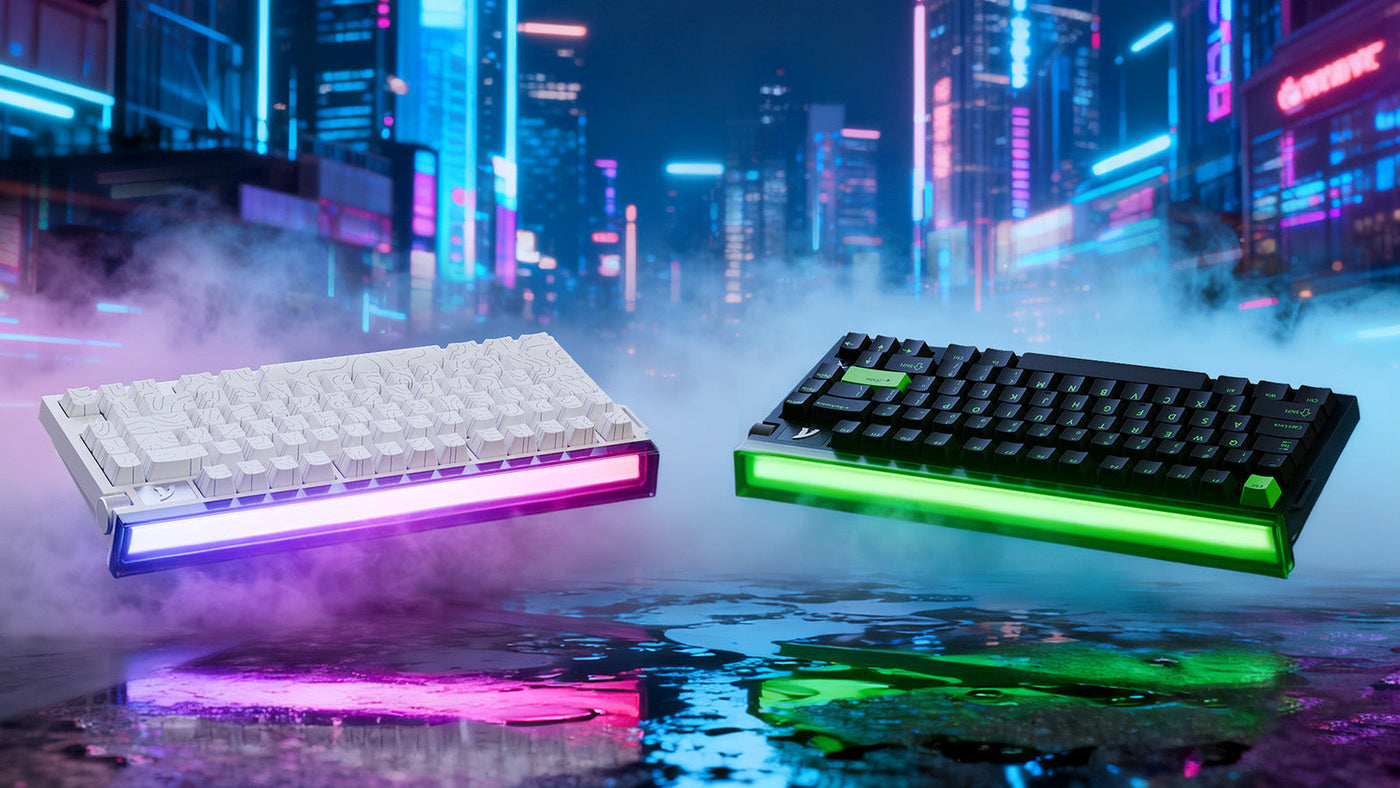
Construir una PC es solo el primer paso. Crear un entorno inmersivo es donde realmente brilla tu personalidad. Muchos jugadores tienen problemas con una iluminación descoordinada que arruina el atractivo visual de su escritorio. Podrías tener una ola arcoíris en tu teclado, un rojo estático en tu ratón y un azul pulsante en los ventiladores de la caja. Esta mezcla caótica es distraída. Aprender a sincronizar tu iluminación RGB transforma un escritorio desordenado en una configuración de juego coherente. Esta guía ofrece un enfoque paso a paso para unificar tus periféricos, desde la selección del hardware adecuado hasta dominar el software que controla todo.

Por qué un tema RGB unificado eleva tu espacio de trabajo
La coherencia visual afecta tu estado mental. Un esquema de iluminación caótico crea ruido visual, lo que puede distraer durante un juego intenso o trabajo que requiere concentración. Un tema unificado, donde los colores fluyen sin interrupciones de un dispositivo a otro, crea una sensación de orden e inmersión.
Cuando tu ratón gaming personalizado pulsa en perfecta sincronía con tu teclado, todo el escritorio se siente como una estación de batalla integrada. Esta sincronización mejora la atmósfera de la habitación. Puede coincidir con el estado de ánimo del juego que estás jugando: azules profundos para exploración submarina o naranjas intensos para shooters rápidos. Más allá de la estética, una iluminación adecuada puede reducir la fatiga visual al proporcionar una iluminación ambiental constante detrás de tu monitor. Fuente
Por qué los LEDs orientados hacia el sur son la elección de los entusiastas
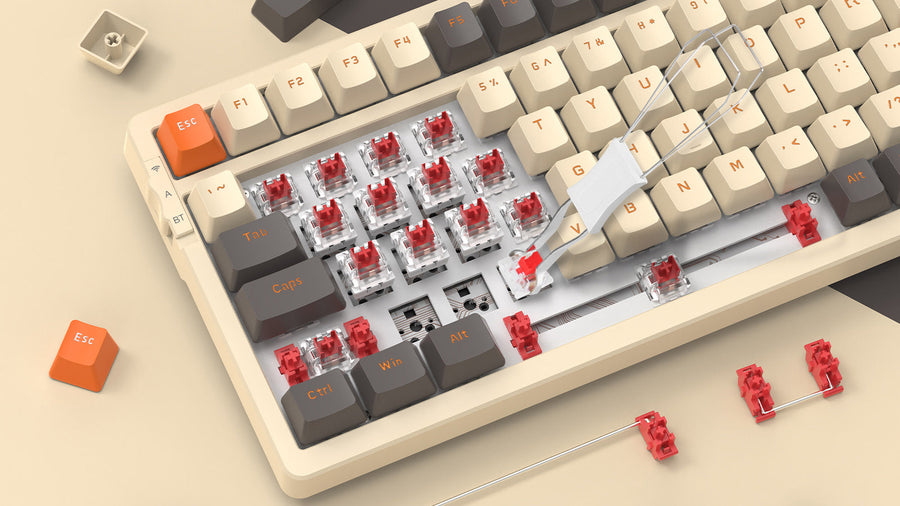
La mayoría de los teclados estándar usan interruptores orientados hacia el norte, donde el LED está en la parte superior de la ranura del interruptor. Aunque esto ilumina bien las leyendas en las teclas, causa interferencia con ciertos perfiles de teclas de alta calidad keycap.
Los entusiastas prefieren LEDs orientados hacia el sur. En esta orientación, la luz está posicionada en la parte inferior del interruptor, mirando hacia el usuario. Este diseño elimina la interferencia física con teclas gruesas de perfil Cherry, asegurando un sonido y tacto consistentes. Más importante para la iluminación, los LEDs orientados hacia el sur suelen proporcionar un mejor efecto de "underglow" entre las teclas. Esto crea una cama vibrante de luz que llena los espacios, haciendo que los colores se vean más ricos y distribuidos uniformemente en todo el teclado.

Cómo controlar la iluminación RGB: controladores oficiales vs. teclas rápidas con memoria integrada
Hay dos formas principales de controlar tu iluminación RGB: usando software o usando el hardware mismo. Entender la diferencia es clave para gestionar tus dispositivos eficientemente.
Usa software oficial
Para efectos complejos, necesitas el software RGB oficial del teclado o el controlador del teclado. Estos programas permiten un control detallado. Puedes asignar colores específicos a teclas individuales, crear capas de efectos (como un efecto reactivo de ondas sobre un fondo estático) y sincronizar el tiempo entre dispositivos. Este método ofrece la mayor creatividad pero requiere que el software esté ejecutándose en segundo plano.
Usa teclas rápidas con memoria integrada
A veces, no quieres tener software innecesario ejecutándose en tu PC. Muchos periféricos de alta gama, incluyendo un ratón gaming genial, cuentan con memoria integrada. Esto te permite guardar tu perfil de iluminación directamente en el dispositivo. Luego puedes cambiar entre estos perfiles guardados usando combinaciones de botones físicas (teclas rápidas) sin abrir ningún software. Esto es ideal para torneos o para usar tu equipo en diferentes computadoras donde no puedes instalar controladores.
Domina tu estética: paletas de colores profesionales y códigos HEX
Para lograr un aspecto profesional, necesitas una paleta de colores definida. Esto significa elegir dos o tres colores complementarios y mantenerlos en toda tu configuración de juego.
Usando códigos HEX para precisión
El ojo humano es sensible a pequeñas variaciones en el tono. El "azul" en tu ratón puede parecer púrpura comparado con el "azul" en tu teclado. Para corregir esto, usa códigos HEX en tu software RGB del teclado. Un código HEX (como #00FFFF para cian) asegura que la instrucción digital para el color sea idéntica en todas las plataformas de software.
Temas populares
- Cyberpunk: Rosa neón (#FF0090) y cian (#00FFFF). Esta combinación de alto contraste resalta sobre periféricos oscuros.
- Atardecer: Púrpura profundo (#2D0066) que se desvanece en naranja (#FF9933). Un degradado cálido y relajante.
- Sigilo: Blanco estático (#FFFFFF) con baja intensidad. Este aspecto limpio y minimalista es perfecto para productividad y resalta el diseño de un ratón gaming personalizado.

Underglow avanzado: maximizando tiras de luz laterales y teclas transparentes
La iluminación no es solo la parte superior de las teclas. Las configuraciones avanzadas utilizan el espacio alrededor y debajo de los periféricos para crear profundidad.
Teclas transparentes y pudding
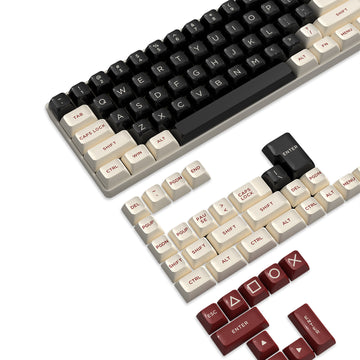
Si quieres el máximo brillo, cambia tus teclas estándar por teclas pudding o por teclas de policarbonato totalmente transparentes. Estas permiten que la luz del interruptor se difunda por los lados de la tecla, creando un efecto de bloque luminoso en lugar de solo una letra iluminada. Esta técnica convierte tu teclado en una fuente de luz masiva.
Tiras laterales y alfombrillas para ratón
Extiende la iluminación a la superficie del escritorio. Muchas alfombrillas para ratón gaming ahora vienen con tiras RGB cosidas en los bordes. Además, busca teclados con iluminación lateral o tiras de underglow en la carcasa. Al configurar estas luces laterales en un color diferente y complementario al de las teclas superiores, creas un efecto de iluminación 3D en capas que añade sofisticación a la configuración.
Solución de problemas 101: arreglando efectos lentos y luces desincronizadas
Nada rompe la inmersión como un efecto de iluminación que se traba o se retrasa. Si tus ondas RGB son entrecortadas, hay algunos culpables comunes.
Conflictos de software
Ejecutar múltiples programas RGB simultáneamente es el problema más común. Si tienes software RGB del teclado de la Marca A y software del ratón de la Marca B ejecutándose al mismo tiempo, pueden competir por los recursos del sistema. Intenta usar un solo ecosistema o un software universal de terceros (como SignalRGB o OpenRGB) que pueda controlar dispositivos de diferentes marcas desde una sola interfaz unificada.
Ancho de banda USB
Los efectos de iluminación complejos envían muchos datos a través del puerto USB. Si tu ratón gaming personalizado y teclado están conectados a un hub USB barato sin alimentación, puede que no haya suficiente ancho de banda o energía para manejar los LEDs de forma fluida. Siempre conecta periféricos RGB de alta potencia directamente a los puertos USB de la placa base o usa un hub con alimentación para asegurar animaciones suaves y sin retrasos.
Conclusión: logrando la configuración RGB definitiva
Coordinar tu iluminación es el toque final que separa un montón de piezas de una verdadera estación de batalla. Al entender las diferencias de hardware como los LEDs orientados hacia el sur y dominar el software controlador del teclado, obtienes control total sobre tu entorno. Ya sea que elijas un blanco estático y calmado o un espectáculo de luces neón reactivo, la clave es la consistencia. Tómate el tiempo para igualar tus códigos HEX, sincronizar tu ratón gaming genial con tu teclado y disfruta de una configuración de juego que luce tan profesional como funciona.
Preguntas frecuentes
¿Puedo sincronizar dispositivos RGB de diferentes marcas?
Oficialmente, no. La mayoría de las marcas usan software propietario que solo funciona con su propio hardware. Sin embargo, puedes usar software de terceros de código abierto como SignalRGB o OpenRGB. Estos programas detectan dispositivos de múltiples marcas y te permiten controlarlos todos desde una interfaz unificada.
¿La iluminación RGB afecta el rendimiento en juegos?
La iluminación en sí no, pero el software sí podría. Un software RGB mal optimizado puede usar una cantidad significativa de CPU en segundo plano. Si notas caídas de frames en juegos, intenta cambiar tus dispositivos al modo "Memoria integrada" y cerrar completamente el software.
¿Cómo apago las luces cuando apago mi PC?
Esto suele ser una configuración del BIOS. La mayoría de las placas base mantienen los puertos USB alimentados incluso cuando la PC está apagada. Busca una opción en tu BIOS llamada "ErP Ready" o "USB Power in Soft Off State" y actívala o desactívala para asegurarte de que tu ratón gaming personalizado y teclado se apaguen cuando la computadora se apague.
¿Cuál es la diferencia entre RGB y ARGB?
RGB (12V) generalmente significa que todos los LEDs en una tira deben ser del mismo color al mismo tiempo. ARGB (RGB direccionable, 5V) te permite controlar cada LED individualmente. Para efectos complejos como arcoíris o ondas que fluyen a través de tu configuración de juego, necesitas dispositivos ARGB.
¿Por qué mis LEDs blancos se ven amarillos o azules?
Crear blanco puro con LEDs RGB es difícil porque requiere mezclar Rojo, Verde y Azul al 100% de brillo. A menudo, el balance de voltaje está ligeramente desajustado, causando un tinte. Puedes corregir esto en el controlador de tu teclado bajando manualmente el color dominante (por ejemplo, reducir un poco el azul si el blanco se ve muy frío) para lograr un blanco más neutro.