

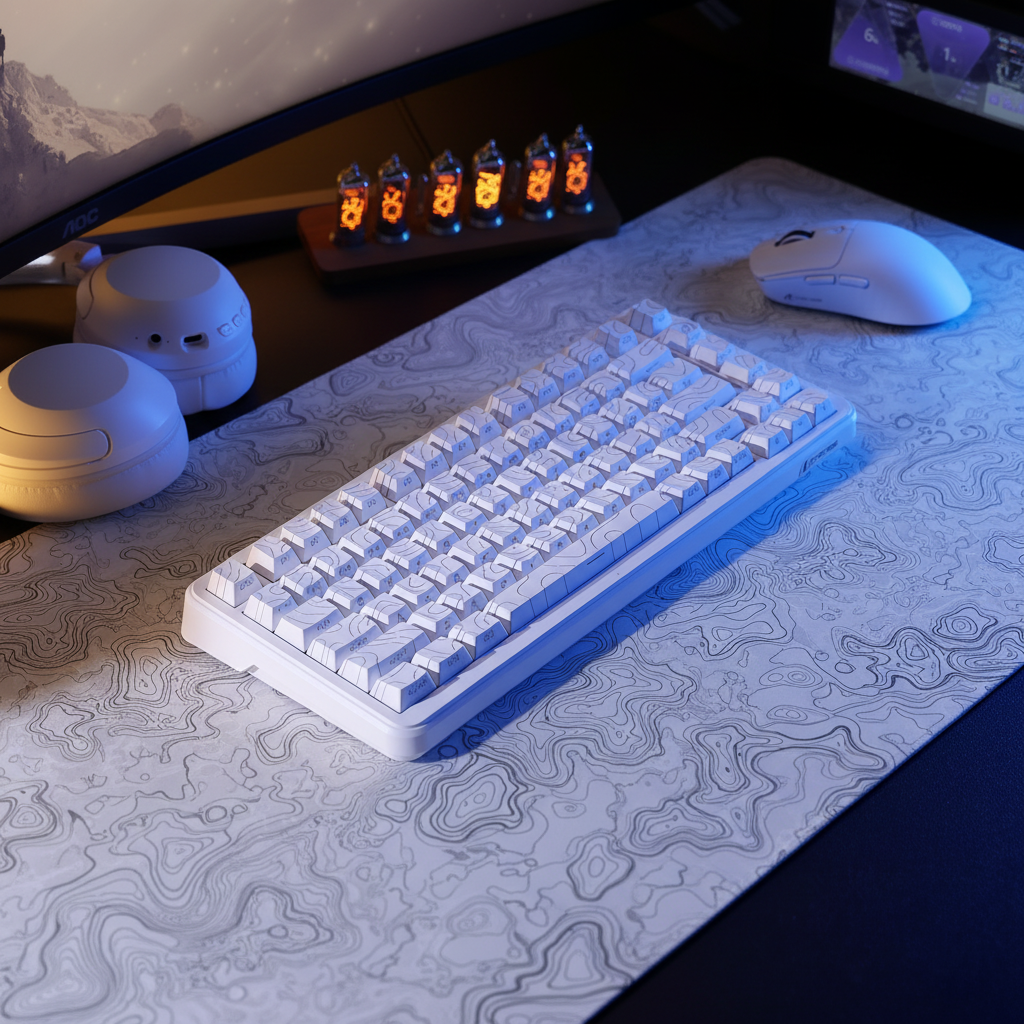
The Quest for the Floating Aesthetic
We’ve all seen those "end-game" setups on social media—the ones where a pristine mechanical keyboard and an ultra-lightweight mouse sit on a topographic desk mat with absolutely no wires in sight. It’s the "floating" look, the holy grail of minimalist gaming.
However, the reality behind the camera is often a rat’s nest of USB-C charging cables, 2.4GHz dongles, and power bricks shoved hastily into a drawer. Achieving a clean AF setup isn't just about buying wireless gear; it’s about mastering the integration of tri-mode peripherals.
"Tri-mode" (Bluetooth, 2.4GHz wireless, and wired USB) offers the flexibility we crave, but it introduces a unique set of cable management headaches. If you’ve ever experienced mid-game "ghosting" or cursor stutter, you’ve likely fallen victim to electromagnetic interference (EMI) or poor receiver placement. In this guide, we’re going deep into the physics of signal degradation and the performance trade-offs that come with high-polling wireless gear.

The Tri-Mode Ecosystem: More Than Just "No Wires"
Tri-mode peripherals are the Swiss Army knives of the desk world. To manage them effectively, you must account for three distinct states:
- Bluetooth: Best for productivity and multi-device switching.
- 2.4GHz Wireless: The low-latency standard for competitive play.
- Wired USB: The fail-safe for charging and high-bandwidth firmware updates.
As noted in the Global Gaming Peripherals Industry Whitepaper (2026), modern high-performance standards make these devices more sensitive to their environment than older wireless tech.
The Hidden Clutter of "Wireless"
A common mistake in desk planning is assuming wireless means "set and forget." In our experience supporting technical setups, a tri-mode desk often requires more cable planning. You must provide:
- Dedicated Charging Access: A hidden but reachable cable or dock.
- RF Line of Sight: A clear path for the 2.4GHz receiver.
- Data Integrity: Accessibility for the wired mode when you need to adjust USB HID Class Definition settings.
The Signal War: EMI and Receiver Placement
The biggest threat to your "floating" mouse isn't a low battery—it's your own cable management. The 2.4 GHz radio frequency is incredibly crowded, shared by Wi-Fi, microwaves, and even poorly shielded PC components.
The USB 3.0 Interference Trap
Conventional wisdom suggests bundling all cables tightly together. However, bundling 2.4GHz dongles with USB 3.0 data cables can cause significant EMI. USB 3.0 connectors emit broadband noise in the 2.4GHz range.
Heuristic Estimate: Based on signal-to-noise ratio (SNR) modeling in high-traffic environments, this interference can degrade wireless peripheral performance by 30–50% (manifesting as packet loss or jitter).
Pro-Tip: The "Short Extension" Rule Instead of plugging your nano-receiver directly into a PC or hub, use a short USB extension cable.
- Route the cable away from the main bundle.
- Place the receiver at least 4 inches away from metal surfaces or USB 3.0 ports.
- Logic: This distance is a practical heuristic based on the inverse-square law of radio frequency attenuation; even a small gap drastically reduces localized EMI.

Infrastructure for Long-Term Desk Health
Magnetic Docks vs. Coiled Cables
- For Mice: A magnetic snap-on charging dock is the superior minimalist choice. It provides a "home" for the mouse and usually houses the 2.4GHz receiver, reducing the number of visible wires.
- For Keyboards: Coiled cables with aviator connectors are the aesthetic standard. Practical Tip: Ensure the "straight" tail section is at least 6 inches long. If it's too short to reach your PC's I/O without pulling the coil taut, it creates unnecessary mechanical tension on the USB-C port.
The 30% Buffer Heuristic
When choosing an under-desk cable tray, always allocate 30% more space than your initial cable bundle estimate.
- Why? This isn't just for future-proofing; it’s for airflow.
- Risk: Heat buildup in tightly packed trays can affect the lifespan of power adapters or cause thermal throttling in high-end docking stations.
Performance Modeling: The "Compact Streamer" Scenario
To understand the real-world stakes, we modeled a specific persona: The Compact Streamer. This user operates on a 140cm desk and demands 4000Hz (4K) polling for competitive gaming.
Methodology & Assumptions
Our analysis uses deterministic parameterized modeling to estimate performance impacts. These are illustrative estimates based on typical hardware profiles (e.g., Nordic nRF52840) and common gaming resolutions.
| Parameter | Value | Unit | Rationale |
|---|---|---|---|
| Polling Rate | 4000 | Hz | High-performance gaming standard |
| Battery Capacity | 300 | mAh | Typical for ultra-lightweight mice |
| Desk Clearance | 15 | cm | Spatial constraint for cable trays |
| Hand Length | 18.8 | cm | 50th percentile male hand size |
| DPI Setting | 1600 | DPI | Standard competitive sensitivity |
Key Model Outputs (Heuristic Estimates)
-
Battery Life vs. Polling Rate (~13 hours): At 4000Hz, the radio and MCU current draw increases significantly.
- Calculation: Estimated runtime of ~13 hours is based on a 300mAh battery and a typical ~23mA peak active current draw for 4K wireless modules.
- Implication: You must charge daily. A hidden magnetic dock becomes a requirement, not a luxury.
-
Hall Effect (HE) Latency Advantage (~9ms): For magnetic switch keyboards, the "Rapid Trigger" feature reduces total latency by approximately 9ms compared to traditional mechanical switches (averaging 6ms vs 15ms).
- Implication: This advantage is roughly equivalent to one full frame at 144Hz. To preserve this, the keyboard should ideally remain in wired mode or a highly stable 2.4GHz environment.
-
The 1150 DPI Threshold: Applying a logic similar to spatial sampling to a 1440p monitor (103° FOV), we estimate a minimum of 1150 DPI is required to avoid "pixel skipping" during rapid movement.
- Implication: Signal integrity must be perfect. Any packet loss due to EMI will be immediately felt as a "stutter" in high-DPI environments.
Trust, Safety, and Verification
When dealing with high-capacity lithium batteries and third-party drivers, follow these expert-level safety checks:
- Battery Safety: Ensure peripherals comply with UN 38.3 (Section 38.3) for battery safety. Based on common patterns in customer support data, "bloated" batteries often occur when devices are left on high-wattage fast chargers overnight. Always use a standard 5V/1A port.
-
Firmware Integrity: Before installing any local configurator, run the
.exeor.zipthrough VirusTotal to check for unsigned code. - RF Compliance: Authoritative devices should be registered in the FCC Equipment Authorization database to ensure they meet interference standards.
Practical Implementation: A Step-by-Step Checklist
- Clear the Deck: Start with the power strip mounted under the desk.
- The 2.4GHz Anchor: Place receivers first. Use a short extension to bring them within 12–18 inches of your mousepad.
- The Hidden Receiver Trick: If you use a clear acrylic wrist rest, you can hide a nano-receiver directly underneath it. Acrylic is signal-transparent and does not significantly attenuate the 2.4GHz signal.
- Route the Power: Run monitor and PC power cables through the center of the tray. Keep data cables (USB) on the outer edges to minimize cross-talk.
- The Charging Tether: Use a magnetic USB-C cable. When not in use, the cable can "stick" to a small metal clip under the desk edge, ready to be pulled up when you hit your 13-hour battery limit.
Summary of Setup Heuristics
| Component | Recommendation | Why? |
|---|---|---|
| Mouse Receiver | Extension cable (Line of Sight) | Prevents USB 3.0 EMI and packet loss. |
| Keyboard Cable | Coiled with 6"+ straight tail | Prevents tension on the USB-C port. |
| Charging | Magnetic Snap-on / Dock | Reduces mechanical wear on internal ports. |
| Cable Tray | Initial Volume + 30% | Ensures airflow and future expansion. |
| Wrist Rest | Clear Acrylic | Hides receivers without signal loss. |
Mastering tri-mode peripherals isn't about eliminating cables—it's about orchestrating them. By understanding the physics of interference and the biomechanics of your setup, you can build a desk that looks like a work of art and performs like a pro-grade battlestation.
Disclaimer: This article is for informational purposes only. When handling electrical components or lithium-ion batteries, always follow the manufacturer's safety guidelines. Consult a qualified technician if you are unsure about power loads or electrical safety in your desk setup.

Dejar un comentario
Este sitio está protegido por hCaptcha y se aplican la Política de privacidad de hCaptcha y los Términos del servicio.