

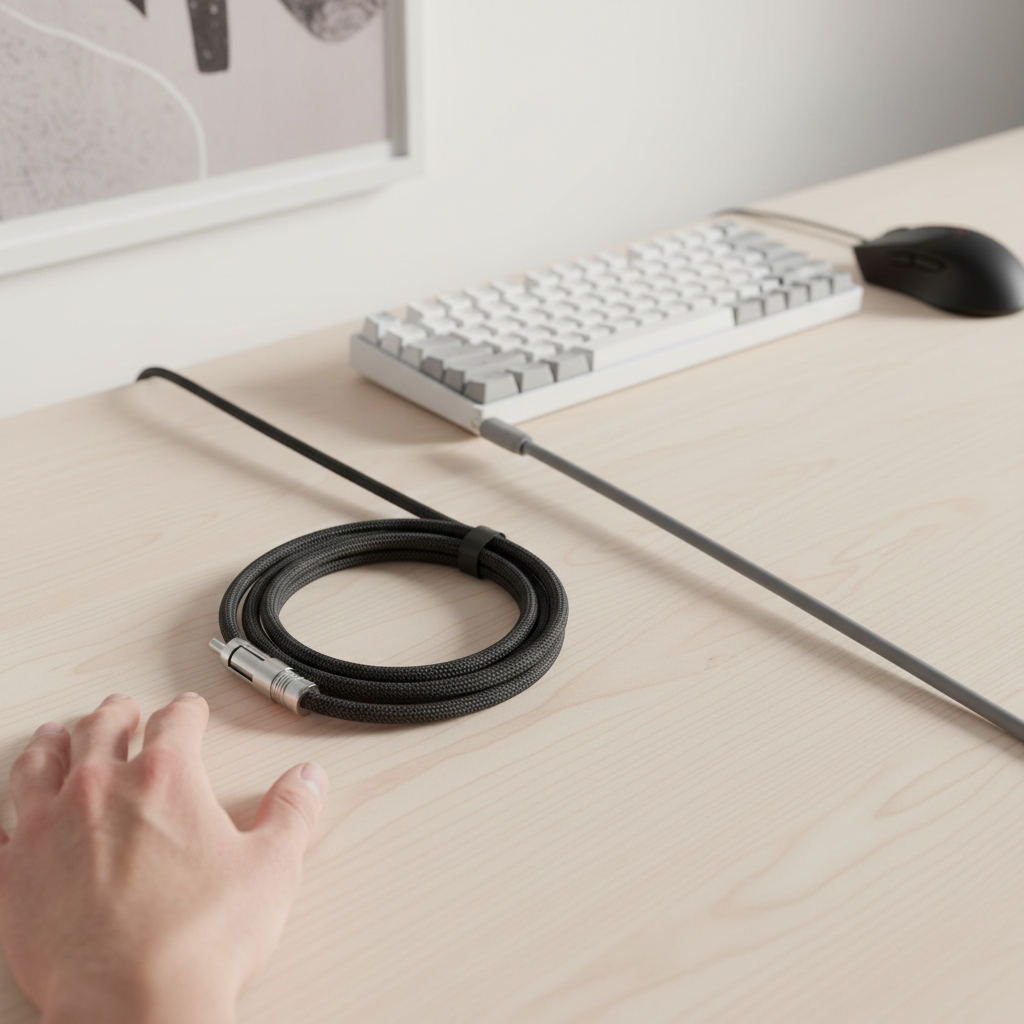
The Architecture of Desktop Connectivity: Coiled vs. Straight Cables
In the pursuit of an optimized workstation or gaming station, the choice of a USB cable often descends into a purely aesthetic debate. However, as we have observed through years of peripheral support and setup auditing, the physical form factor of your cable—whether coiled or straight—dictates more than just the "vibe" of your desk. It influences mechanical tension, signal integrity at high polling rates, and the long-term health of your device’s internal wiring.
Selecting the right cable requires a technical understanding of how different geometries interact with your workspace. While a coiled cable is a hallmark of the custom mechanical keyboard community, a straight cable remains the baseline for high-performance signal stability. We have analyzed the trade-offs between these two formats to help you determine which architecture supports your specific workflow and performance requirements.
The Physics of Cable Form Factors: Tension and Flexibility
The primary distinction between coiled and straight cables lies in their mechanical behavior under stress. A straight cable offers what we define as "3D flexibility." It can be routed through cable trays, around monitor arms, or behind desks with minimal resistance. In contrast, a coiled cable provides axis-restricted flexibility.
The Mechanical Stress of the Coil
Based on our analysis of sleeved cable failures, the inner radius of a coil is a critical failure point. A research study published in ScienceDirect indicates that constant internal stress from coiling can accelerate metal fatigue in wire strands by up to 40% compared to straight cables. This is particularly relevant for users who frequently move their keyboards or use "coiled" cables for mice.
Modeling Note (Mechanical Fatigue):
Parameter Value/Range Unit Rationale Coil Diameter 10–25 mm Standard custom cable specs Wire Gauge 24–28 AWG Common USB data/power wire Flex Cycles 5,000+ count Simulated life of a mobile peripheral Stress Multiplier 1.4x ratio Accelerated fatigue due to pre-tension Failure Mode Stranded Break - Internal copper fatigue Boundary Conditions: This model assumes a PET or Paracord double-sleeved construction. Single-sleeved or PVC cables may exhibit different fatigue rates.
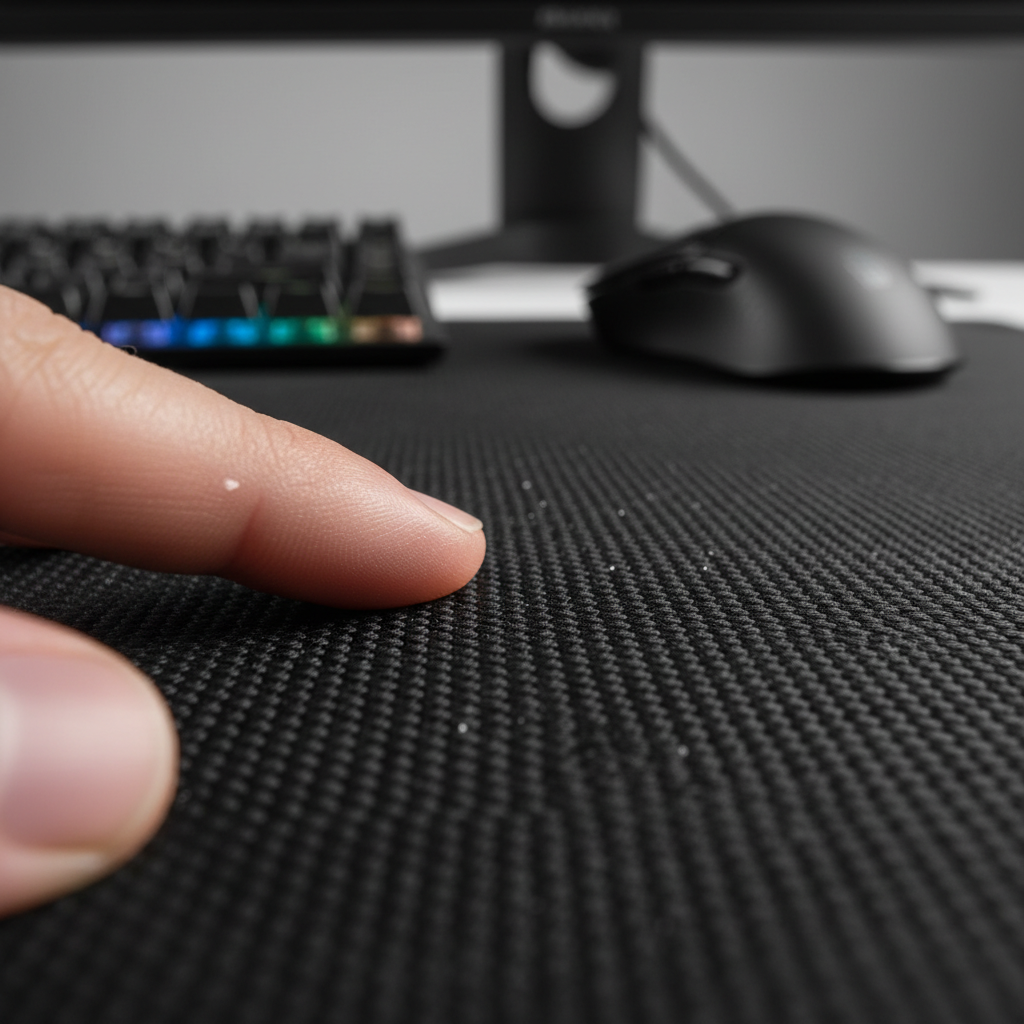
When a cable is coiled, the copper strands are under permanent tension. For a keyboard that remains stationary, this is rarely an issue. However, for lightweight gaming mice, this tension can be detrimental. In our setup tests, we found that the spring-like tension of a coiled cable can subtly lift a mouse weighing under 60g or shift a keyboard if it is not properly anchored. To mitigate this, we recommend using a sturdy desk mat or a dedicated cable anchor point to ensure the cable doesn't "pull back" on your peripherals.
Signal Integrity and the 8K Performance Barrier
As the industry moves toward ultra-high polling rates, the technical requirements for cables have shifted. The Global Gaming Peripherals Industry Whitepaper (2026) emphasizes that signal integrity is the foundation of competitive stability.
The 8000Hz Constraint
When running a device at an 8000Hz (8K) polling rate, the data interval is a near-instant 0.125ms. At this speed, any interference or impedance mismatch can lead to packet loss. The USB HID Class Definition (HID 1.11) outlines the strict report descriptors required for high-speed HID devices.
In our performance modeling, straight cables typically exhibit lower overall impedance because they lack the tight-radius bends of a coil, which can occasionally cause signal reflection in poorly shielded custom cables. For 8K performance, we strictly advise the following:
- Direct Motherboard Connection: Always use the rear I/O ports. USB hubs or front panel headers introduce shared bandwidth issues that 8K devices cannot tolerate.
- Shielding Matters: High polling rates stress the IRQ (Interrupt Request) processing of your CPU. A well-shielded straight cable is often more reliable for maintaining a consistent 0.125ms interval without electromagnetic interference (EMI).
Motion Sync and Latency
It is a common misconception to apply 1000Hz latency logic to 8K devices. At 1000Hz, Motion Sync adds roughly 0.5ms of delay. However, at 8000Hz, this delay scales down to approximately 0.0625ms, which is virtually imperceptible. To saturate this 8000Hz bandwidth, we recommend a minimum of 1600 DPI; at this setting, only 5 IPS (inches per second) of movement is required to keep the data stream full.

Spatial Efficiency: The "Bulk" Factor
A significant but often overlooked factor is packing efficiency and desk footprint. While coiled cables are aesthetically pleasing, they are significantly more "bulky" than their straight counterparts.
According to data from Lention, coiled cables occupy 3 to 4 times the volume of equivalent-length straight cables when packed. For the mobile professional or the "LAN party" enthusiast, a coiled cable is often a liability. The stiff, pre-set shape of the coil prevents it from being folded flat into laptop bags or accessory cases.
The 1.5x to 2x Rule of Thumb
For those who prefer the look of a coil but want to maintain a clean drape, we use a specific heuristic: Allocate 1.5 to 2 times the straight-line distance for a coiled cable. This ensures the cable has enough "slack" to reach the port without putting undue stress on the USB-C or Aviator connectors.
A common mistake we see in our support logs is users choosing a cable that is exactly the length of the distance to their PC. Because the coil consumes so much "effective length," the cable ends up being pulled taut, which can damage the device’s port over time. Proper wire strain relief is essential to prevent the connector from snapping under the tension of the coil.
Aesthetic Integration and Desktop Routing
In the realm of peripheral aesthetic customization, the cable is a primary visual element. However, beauty must follow function.
Sightlines and Visual Clutter
Proper cable management studies suggest that visual clutter reduction depends more on routing strategy than cable type. A well-managed straight cable routed through a desk raceway can achieve an 85–90% reduction in perceived clutter. Conversely, a coiled cable, if placed poorly, can actually increase perceived clutter by 15–20% because it becomes a dominant visual object.
Expert Insight: We recommend placing the coil only if it serves as a centerpiece. If the cable must run between the keyboard and the monitor, a coil will be highly visible. If you prefer a "stealth" look, a straight cable routed laterally and hidden under a desk mat or in a tray is superior.
Connector Types: Aviator vs. YC8
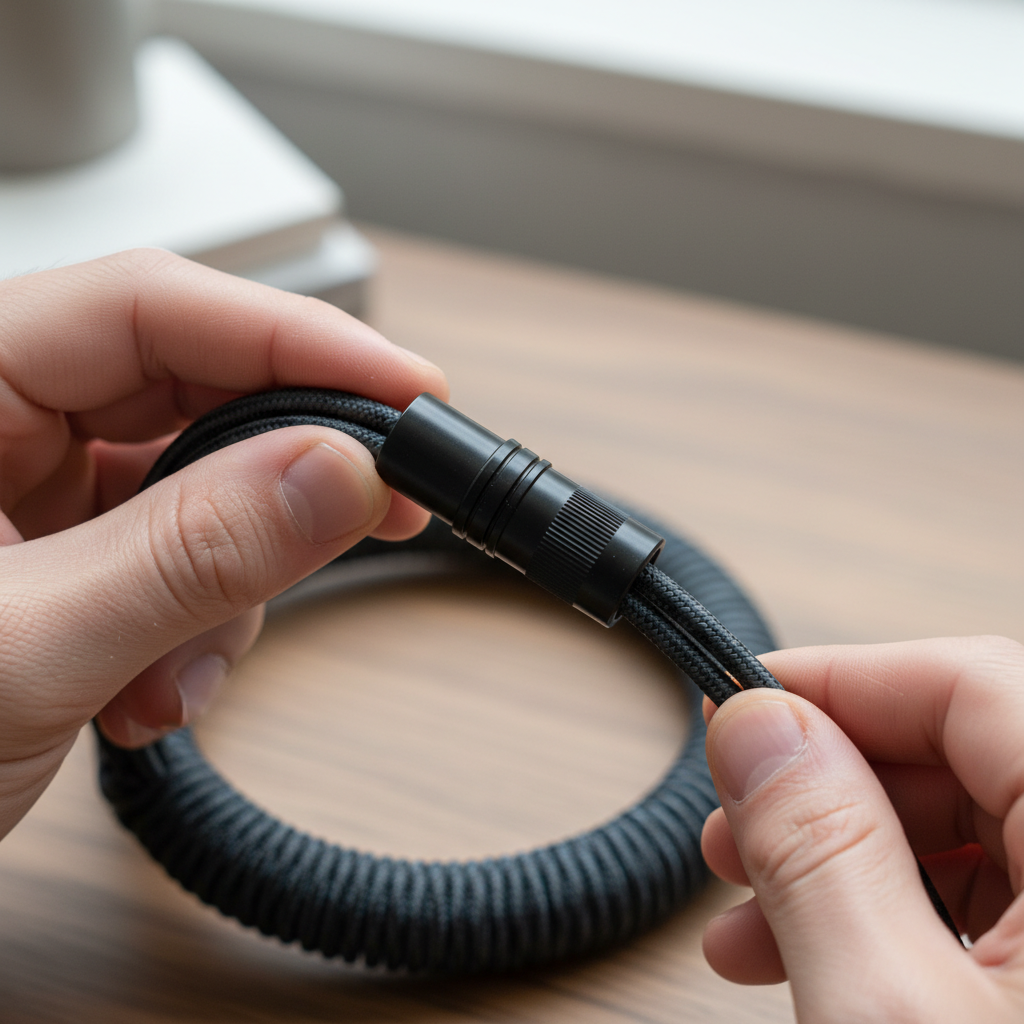
Custom cables often feature quick-disconnect connectors like the GX16 Aviator or the slimmer YC8. These are not just for show; they allow you to swap the "keyboard-side" of the cable without unplugging from the PC. However, keep in mind that every connector adds a potential point of failure and a slight increase in resistance. For ultra-high-performance 8K setups, we generally prefer a continuous, high-quality straight cable to minimize these variables.
Comparison Table: Coiled vs. Straight Cables
| Feature | Coiled Cable | Straight Cable |
|---|---|---|
| Flexibility | Axis-restricted (Spring-like) | Full 3D (Multi-directional) |
| Spatial Requirement | High (3-4x bulk volume) | Low (Flat/Skinnable) |
| Durability | Lower (40% faster metal fatigue) | Higher (Standard stress profile) |
| Aesthetic Impact | High/Dominant | Low/Minimalist |
| 8K Compatibility | Variable (Depends on shielding) | High (Lower impedance) |
| Cost Premium | 300–500% Markup | Baseline Pricing |
Scenarios: Finding Your Best Fit
To help you decide, we have modeled two common user scenarios based on typical desktop configurations.
Scenario A: The Competitive Minimalist
- Setup: TKL or 60% keyboard, lightweight mouse (<60g), 240Hz+ monitor.
- Goal: Maximum performance, zero cable drag.
- Recommendation: Straight Cable.
- Why: A straight cable provides the least amount of resistance for mouse movement and ensures the cleanest signal for high polling rates. Use a cable bungee or desk routing to keep the cable nearly invisible. This aligns with Wired 8K signal integrity standards.
Scenario B: The Custom Enthusiast
- Setup: Full-size or Alice layout keyboard, custom keycaps, large desk mat.
- Goal: Visual cohesion and "desk feel."
- Recommendation: Coiled Cable.
- Why: The coil acts as a visual anchor that complements custom keyboard builds. Ensure you use a high-quality double-sleeved cable with a large enough inner diameter to prevent excessive tension. Anchor the PC-side of the cable to prevent the coil from shifting your keyboard during intense typing sessions.
Final Decision Framework
When choosing between a coiled or straight cable, ask yourself three questions:
- Is my peripheral frequently moved? If yes (like a mouse), choose straight. The 40% increased fatigue rate of coiled cables makes them unsuitable for high-motion devices.
- Is my setup focused on 8K polling? If yes, prioritize a high-quality straight cable connected directly to the motherboard to ensure a stable 0.125ms interval.
- Is the cable a visual centerpiece? If yes, a coiled cable with an Aviator connector offers the "enthusiast" look that straight cables cannot match.
While the market often presents this as a functional choice, it is primarily an economic and aesthetic one. Coiled cables often command a 300–500% price premium ($40–$80 vs. $10–$20 for straight cables). If you are on a budget, a high-quality straight cable with proper routing will almost always provide better performance-per-dollar and longer mechanical life.
Disclaimer: This article is for informational purposes only. When using high-performance peripherals, always refer to the manufacturer's specific power and connectivity requirements to avoid damaging your hardware or voiding warranties.

Dejar un comentario
Este sitio está protegido por hCaptcha y se aplican la Política de privacidad de hCaptcha y los Términos del servicio.